Category: Articles

  • How to Download and Install the ChatGPT App on Mac and Windows: A Complete Guide

    How to Download and Install the ChatGPT App on Mac and Windows: A Complete Guide

    How to Download and Install the ChatGPT App on Mac and Windows: A Complete Guide

    When OpenAI released ChatGPT, I was amazed with its ability to generate texts for conversations, and how it could help with problem solving and content creation. While most people use the web version, the ChatGPT desktop app for Mac and Windows offers a more streamlined experience tailored to your computer. Whether you’re a Mac enthusiast or a Windows user, I created this guide to walk you through downloading and installing the ChatGPT app with ease. I’ll also cover troubleshooting tips and how to get started, ensuring you unlock the full potential of this powerful AI tool.

    Why Download the ChatGPT App?

    The ChatGPT desktop app brings several advantages over its browser-based counterpart:

    • Faster Access: Launch it directly from your desktop without opening a browser.
    • Offline Viewing: Access past conversations even without an internet connection.
    • Enhanced Features: Enjoy app-specific functionalities like voice chat and customizable settings.

    From drafting emails to brainstorming ideas or learning new topics, the app fits seamlessly into your workflow, making it a must-have for productivity and creativity.


    Downloading and Installing ChatGPT on Mac

    Go to Windows Guide

    System Requirements

    • Operating System: macOS 14 (Sonoma) or later
    • Hardware: Apple Silicon (M1 or better)

    Step-by-Step Guide

    Visit the Source: Go to the official OpenAI website or open the Mac App Store. For Windows go to the Microsoft Store.

    Find the Download:

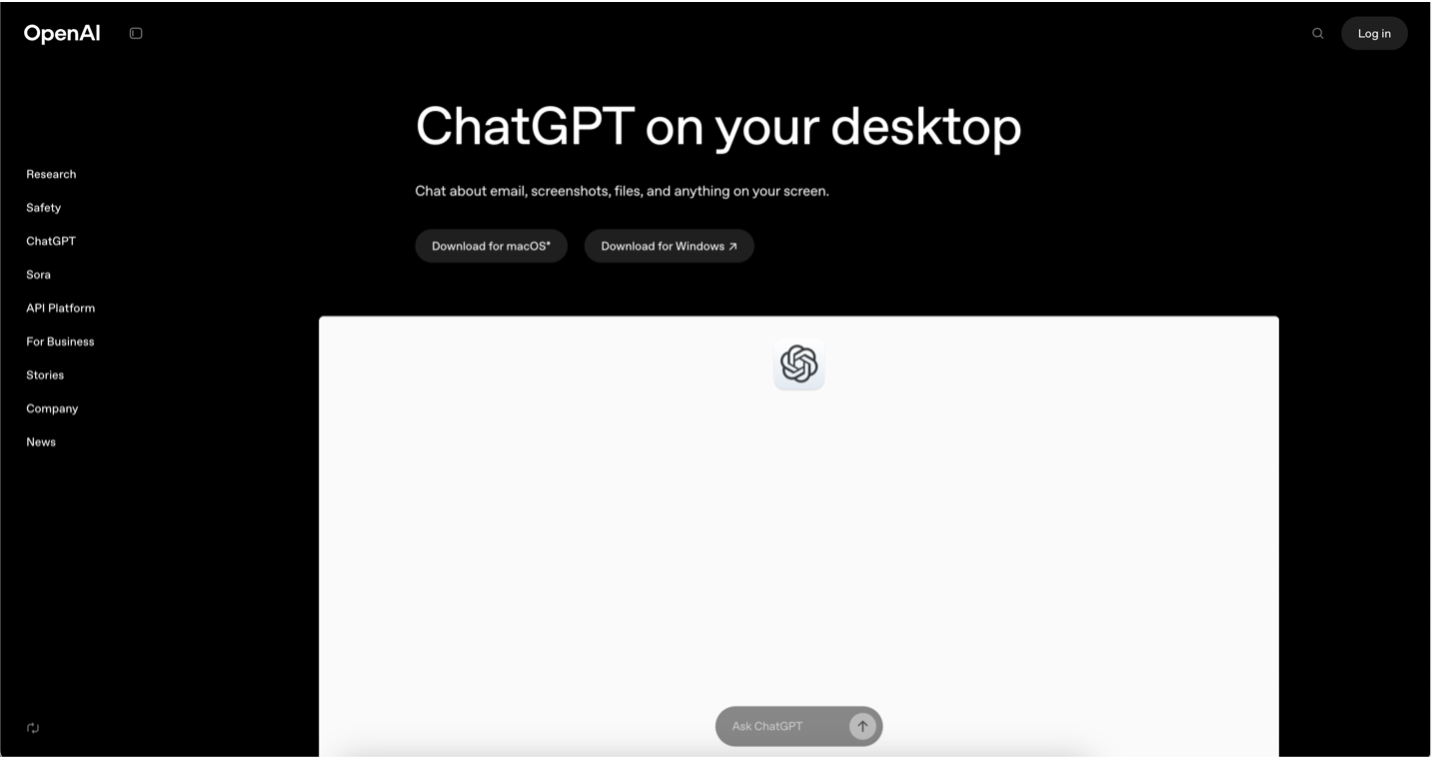
    • On the website, navigate to the ChatGPT section and select the Mac version.
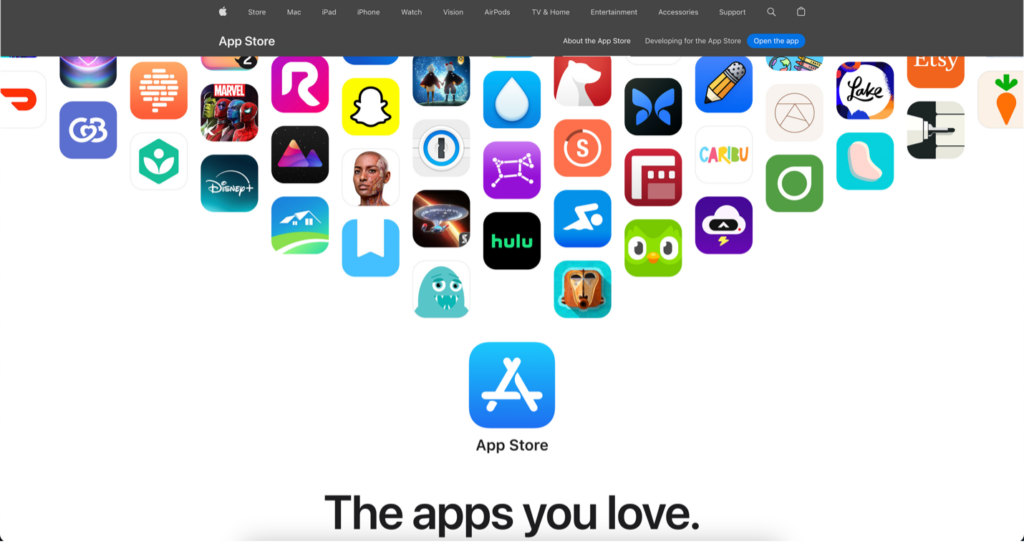
    • In the App Store, search for “ChatGPT” and locate the official app by OpenAI.
    • Download the App: Click “Download” (website) or “Get” (App Store). The file will save as a .dmg.
    • Install the App: Open the downloaded .dmg file, then drag the ChatGPT icon into your Applications folder.

    Launch ChatGPT: Open the Applications folder, double-click ChatGPT, and sign in with your OpenAI account.

    “Developer Cannot Be Verified” Error: Right-click the app, select “Open,” and confirm to proceed.

    Compatibility Problems:

    • Ensure your macOS is updated via System Settings > Software Update.
    • App Won’t Launch: Verify your Mac meets the requirements or reinstall the app.

    Downloading and Installing ChatGPT on Windows

    System Requirements

    • Operating System: Windows 10 or later
    • Hardware: 64-bit processor

    Step-by-Step Guide

    • Go to OpenAI’s Website.
    • Locate the Download: Find the ChatGPT section and select the Windows version.
    • Download the File: Click “Download” to get the .exe installer.
    • Run the Installer: Double-click the downloaded file and follow the on-screen prompts (e.g., agree to terms, choose install location).
    • Launch the App: Open ChatGPT from the Start menu or desktop shortcut and log in.
    • Installation Fails: Right-click the .exe and select “Run as Administrator.”
    • Crashes on Startup: Update Windows via Settings > Windows Update or reinstall the app.
    • Conflicts with Software: Temporarily disable antivirus during installation if issues persist.

    Getting Started with the ChatGPT App

    Once installed, the ChatGPT app is intuitive to use:

    Basic Features:

    • Type a prompt (e.g., “Write a thank-you note”) and press Enter for a response.
    • Click the microphone icon for voice chat—perfect for hands-free use.

    Maximizing Potential:

    • Adjust settings (e.g., response tone or length) via the app’s preferences.
    • Use it for tasks like coding snippets, drafting essays, or planning projects.

    Try this example: “Generate a 5-day travel itinerary for Paris.” The app will deliver a detailed plan in seconds!

    Other Ways to Chat

    Something I really like about ChatGPT is how easy it is to download and use. You can have daily conversations with your AI buddy. Then you run out of time. You might even have to return the next day to finish your chat. If you can remember what you were talking about…

    That’s the downside of a subscription based service. Also, do I really want to feed the Internet with stories of that weird boil on my left leg? I wish I could talk to it about private things.

    That’s where the DeepSeek app comes in. Just like the ChatGPT desktop app, you download it to your computer and can chat about anything. But this one is local, offline, and completely private. I could tell it about that weird boil, or even paste some of my bank statements without worrying about that info being used to train the AI.

    The app is designed as a one-time install, no-subscription model, focusing on high-end hardware users with its offline-capable, high-performance hardware integration. This allows users to run the AI directly on their devices, offering greater privacy, reduced latency, and no need for the Internet.

    I love that you don’t need to watch videos or read long tutorials to download DeepSeek. Just go here.

    Frequently Asked Questions (FAQ)

    • Is the ChatGPT app free? Yes, it’s free to download and use with a basic OpenAI account.
    • Does it require an internet connection? Real-time responses need internet, but past chats are viewable offline.
    • How do I update the app? You’ll get in-app notifications; follow the prompts to install updates.
    • Can I use it offline? Only for viewing history—active use requires a connection.
    • Is there a mobile version? Yes, available for iOS and Android via their respective app stores.

    Conclusion

    For all the power of ChatGPT, I was surprised at how easy it is to download and install it. With this guide, you’re equipped to get started effortlessly, troubleshoot any hiccups, and make the most of its features. Visit openai.com to download it today, and explore the OpenAI community forums for more tips and inspiration.

  • Software Download Guide for People who Live Under a Rock

    Software Download Guide for People who Live Under a Rock

    Software Download Guide for People who Live Under a Rock

    I was so proud to finally climb out of the dark ages and get an M-series MacBook. Before 2025, the last computer I bought was a decade ago. But what now? What apps should I download? Things have changed a lot since then: we didn’t even have AI! In 2025, my computer should cover all the bases: creative, gaming, AI, and productivity. Where to start? I’ve got to get this right.

    I had to figure out how to find, download and install app software that can make the most of this shiny new MacBook. I’m sure it’s not that different for PCs. I’ll share what I found on my app search.  I’ll even point out an example, like DeepSeek for Mac and Windows that’s simple and powerful.

    After figuring out all the particulars, I put together a guide to help you. This guide is your roadmap to navigating the world of software downloads in 2025. We’ll walk you through everything—from understanding what software downloads are to finding the best programs for your Mac or Windows PC. Along the way, we’ll shine a spotlight on the DeepSeek app, a standout example of premium software designed for high-performance systems. Whether you’re a tech expert or just discovering the digital world, you’ll find practical tips and clear steps to elevate your computer experience.

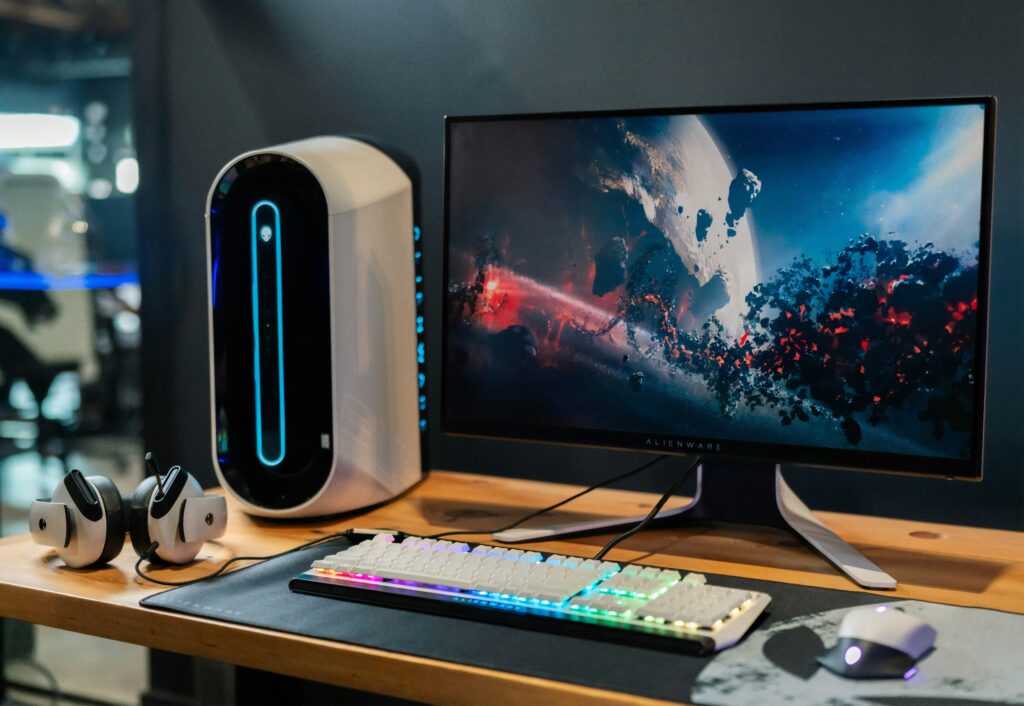
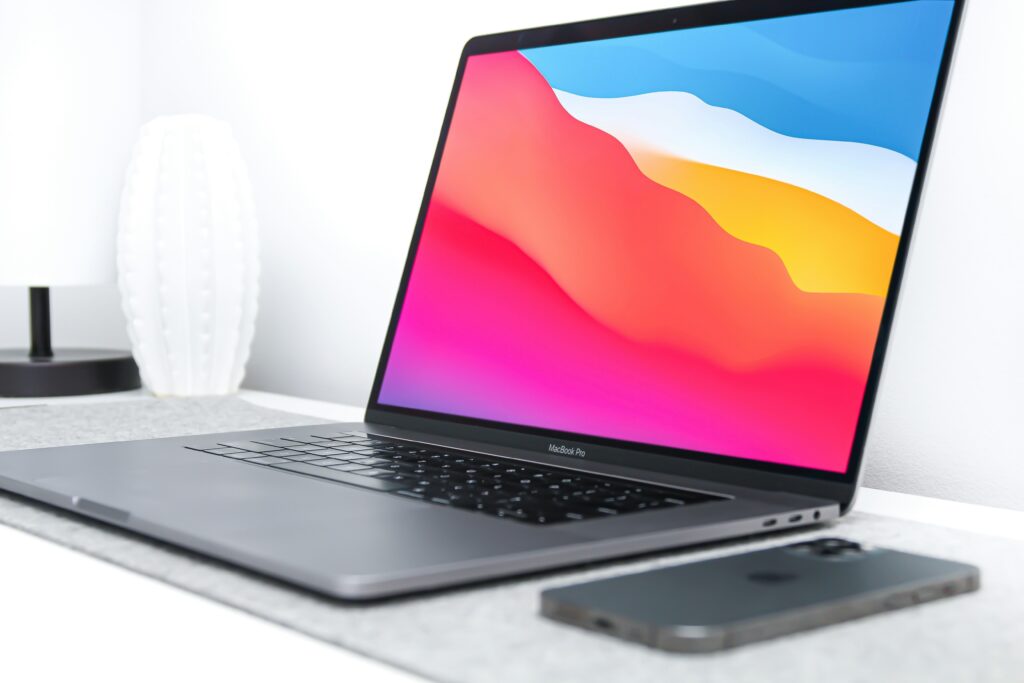
    Photo by Brandon Romanchuk on Unsplash

    What Are App Software Downloads?

    I used to think that apps were a different animal from computer programs. Not so. Apps are programs that you install to add a new feature. It’s like modding your car. I’m pretty excited that downloading apps is also different from a subscription—I just have to pay for it once, and I get it fast and privately.

    In 2025, there’s a noticeable shift toward local software—programs that run directly on your device without needing constant cloud access. This trend is fueled by growing concerns about privacy and a desire for greater control over your tech. Take the DeepSeek app, for instance: it delivers robust AI capabilities right on your high-end Mac or PC, no internet or subscriptions required. People search for these terms because they’re looking to enhance their computer’s functionality—whether that’s boosting productivity, sparking creativity, or diving into bleeding-edge technologies like AI.

    How to Find the Best Software for Your Computer

    I want all the apps. But it might be helpful to narrow down what apps to get by what I need. One of the things I want to do with my new computer is work on my dormant YouTube channel. So, I would need productivity software to hone my video ideas and organize my thoughts. I’d need creativity tools to edit the videos. Local AI could help me do all that stuff faster. And since my YouTube channel is about gaming, I also need gaming apps. So, yeah. I have all the app needs. But what do I do next?

    Not all apps are created equal, so here’s how to zero in on the good stuff:

    1. Know Your Needs: Are you after productivity (e.g., note-taking), creativity (e.g., design tools), or something cutting-edge like local AI? Define your goal first.
    2. Research thoroughly: Check reviews on trusted sites like MacRumors (for Mac) or Tom’s Hardware (for Windows).
    3. Compare features: Make sure the software aligns with your specific needs.
    4. Confirm compatibility: Mac users should verify support for their macOS version (especially with M-series chips), while Windows users should ensure optimization for Windows 11.

    Stick to reliable sources for your downloads:

    • Mac users: The Mac App Store is secure but limited; MacUpdate offers more variety.
    • Windows users: The Microsoft Store is convenient, though developer websites often have broader selections.
    • Both platforms: For innovative tools like DeepSeek for Mac and Windows, head straight to the official landing page.

    Step-by-Step Guide to Downloading and Installing Apps

    Once I was ready to get started, I was thankful it wasn’t too hard. I used this process:

    1. Pick trusted sources: Use the Mac App Store, Microsoft Store, or the developer’s official site. Steer clear of third-party download hubs—they’re often risky.
    2. Double-check safety: If you can, verify the software’s digital signature. Run an antivirus scan on the file for extra peace of mind.
    3. Install carefully:
      1. Mac: Drag the app to your Applications folder.
      1. Windows: Run the installer and follow the prompts, watching out for bundled extras you don’t need.

    To download the DeepSeek app:

    Visit the DeepSeek landing page, select your platform (Mac or Windows), and click download. The installer walks you through a quick, secure setup.

    These steps minimize risks and ensure your software is legit and safe.

    Now here’s the fun part—recommendations.

    Top Software Picks for Mac and Windows in 2025

    Here are my top software recommendations for 2025, grouped by purpose:

    • Productivity:
      • DeepSeek: Chat with the smartest AI in minutes.
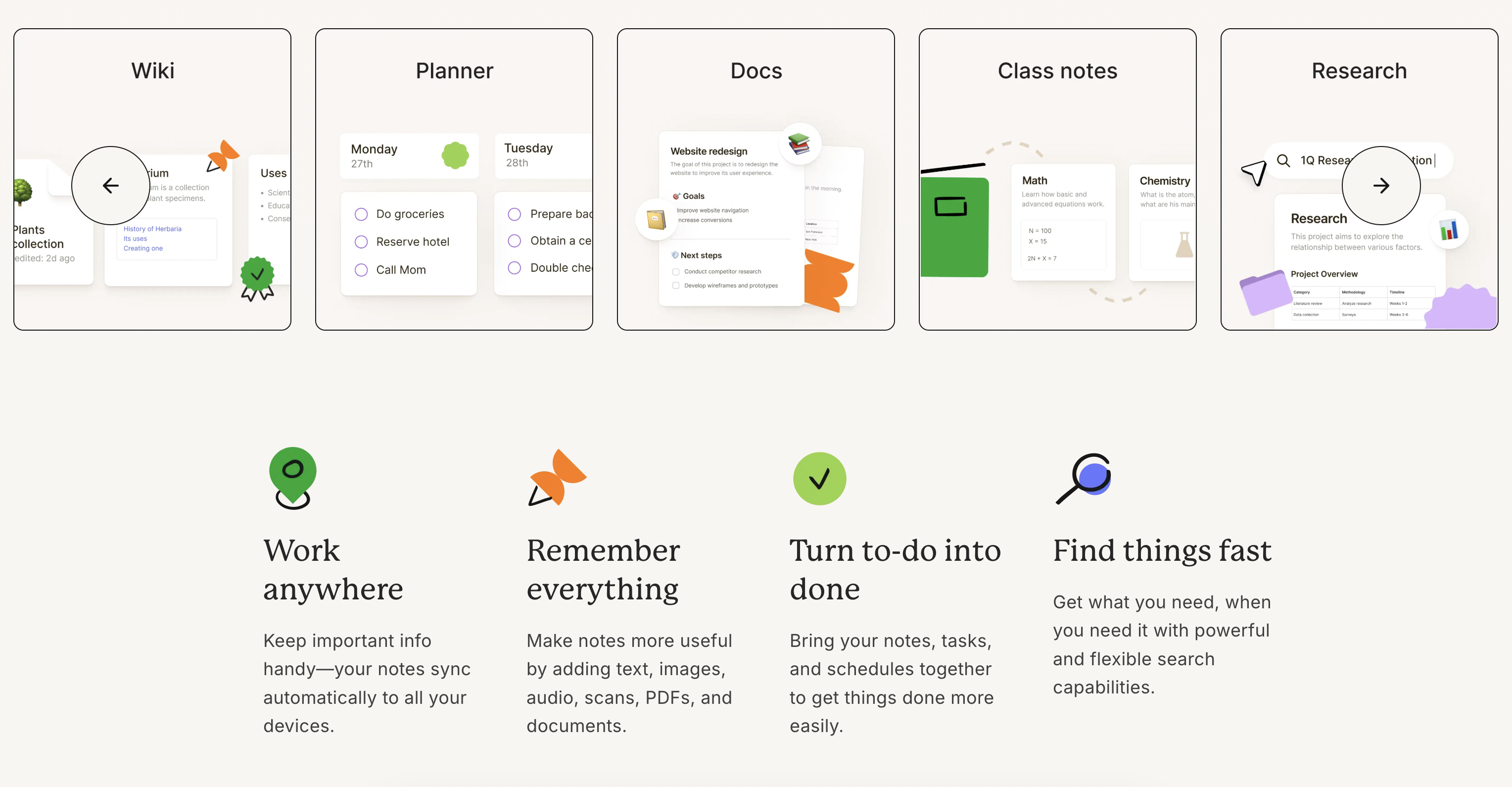
      • Notion: Cross-platform note-taking and project management.
      • Alfred (Mac)
      • Microsoft To Do (Windows): Task automation and organization.

    These recommendations cater to a variety of needs, from daily tasks to specialized projects like AI or creative work.

    Optimizing Your Computer Post-Download

    After downloading, optimize your setup to keep your computer running smoothly:

    • Installation tips: Skip unnecessary add-ons during setup and tweak settings to your liking.
    • Platform-specific tricks:
      • Mac: Use Disk Utility to manage storage and clear clutter.
      • Windows: Open Task Manager to control startup programs and speed up boot times.
    • Ongoing maintenance: Update software regularly and uninstall anything you no longer use.

    These habits will keep your system fast and efficient, even with multiple programs installed.

    Spotlight on the DeepSeek App

    For a premium software experience on high-performance hardware, the DeepSeek app stands out. Available for both Mac and Windows, it’s a local AI tool that doesn’t rely on cloud subscriptions or constant internet access.

    What makes DeepSeek special?

    Features:

    • Robust AI capabilities that tap into your computer’s full power.
    • User-friendly: Easy to install and navigate, even for non-techies.
    • No recurring costs: A one-time download gives you premium tools without subscriptions.

    How to get DeepSeek:

    1. Go to the official DeepSeek landing page.
    2. Choose your OS (Mac or Windows).
    3. Follow the simple installation instructions.

    DeepSeek is perfect for anyone who wants to explore AI on their terms, leveraging their high-end Mac or PC to the max.

    Conclusion

    I’m glad I found app software downloads! My Mac is running at full potential. I hope this guide has equipped you with the know-how to find, download, and optimize programs for your Mac or PC safely and effectively. Be sure to explore the DeepSeek app for a premium AI experience that’s subscription-free and designed for top-tier hardware.

    Ready to take your computer to the next level? Check out DeepSeek and our other top picks today.